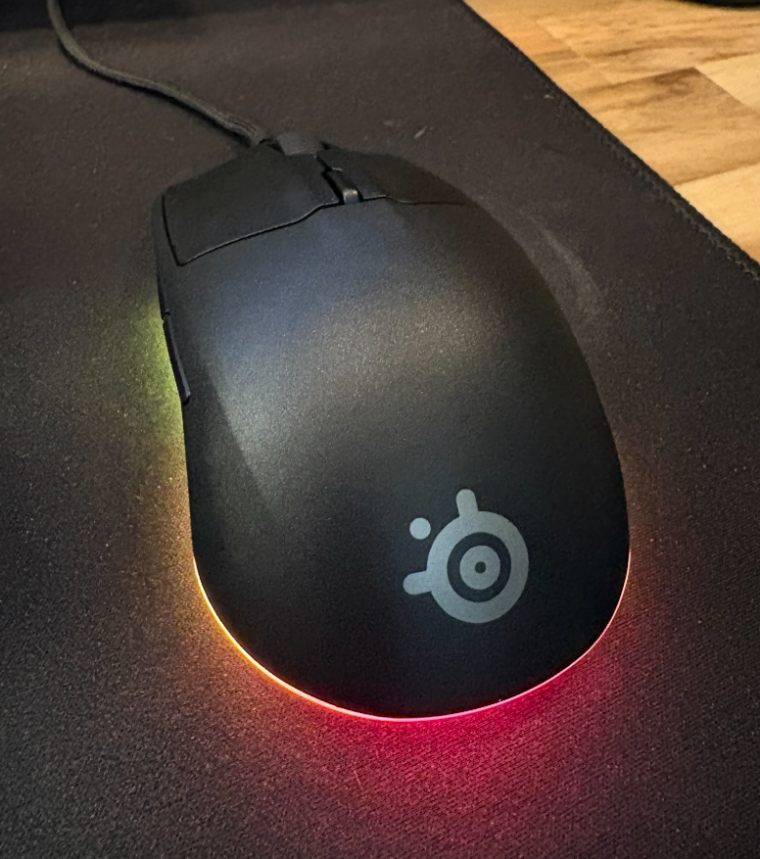
I recently got a Steelseries wired USB mouse, specifically the “Rival 3 Gen 2” as it was convenient to buy at Walmrt when I needed a new mouse. The mouse works fine in Linux, however it has an RGB light strip on the bottom which defaults to an animated rainbow. Its easy to ignore during the day but is pretty bright at night.
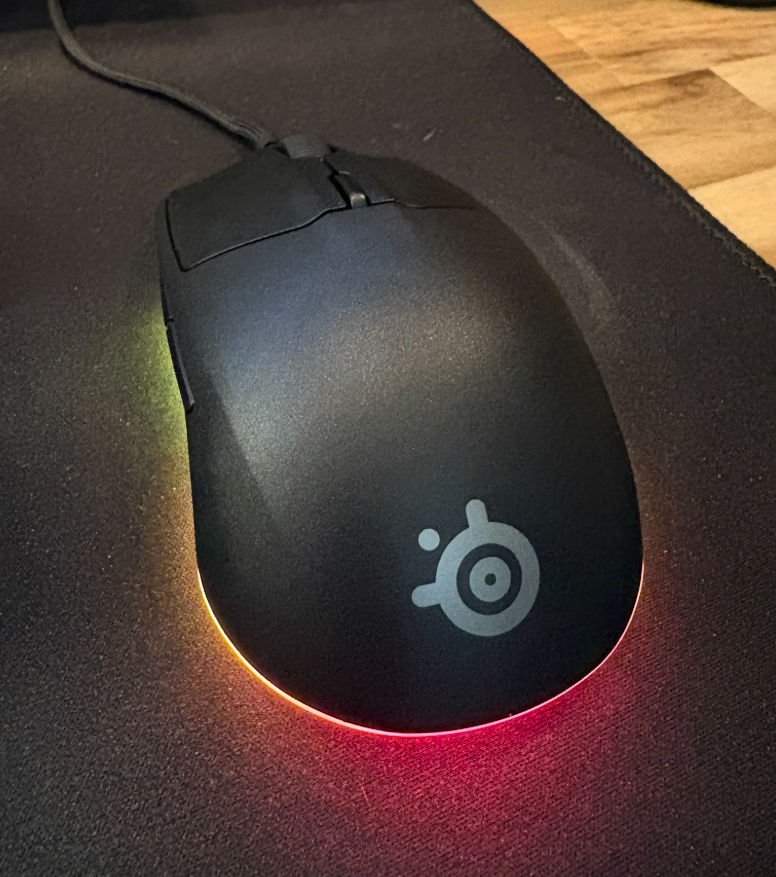
So, how to turn it off? The official answer is to use the Steelseries GG software, which only works in Windows and Mac.
Fortunately, flozz created rivalcfg – a python library and CLI tool for configuring SteelSeries mice. rivalcfg added support for this model (USB ID 1038:1870) in v4.16.0, and the setting is stored in the mouse’s flash.
Confirming the device:
$ lsusb | grep 1038
Bus 003 Device 014: ID 1038:1870 SteelSeries ApS SteelSeries Rival 3 Gen 2
Install rivalcfg
Install from PyPI. On Debian 13, pip install --user will refuse with “externally-managed-environment”. Use pipx instead:
sudo apt install pipx libhidapi-libusb0 libhidapi-dev python3-dev build-essential
pipx install rivalcfg
pipx ensurepath
Start a new shell so ~/.local/bin is in your PATH, then:
$ rivalcfg --version
4.17.0
Install the udev rules
sudo ~/.local/bin/rivalcfg --update-udevUnplug and re-plug the mouse. You should then see endpoints here:
$ rivalcfg --print-debug

RIVALCFG
========
Version: 4.17.0
...

PLUGGED STEELSERIES DEVICES ENDPOINTS
=====================================
1038:1870 | 00 | SteelSeries Rival 3 Gen 2 (firmware v0)
1038:1870 | 01 | SteelSeries Rival 3 Gen 2 (firmware v0)
1038:1870 | 02 | SteelSeries Rival 3 Gen 2 (firmware v0)
1038:1870 | 03 | SteelSeries Rival 3 Gen 2 (firmware v0)
Now, kill the lights:
rivalcfg --default-lighting offCredit where due
Thanks for Fabien Loison for creating and publishing the rivalcfg project. Gen 2 support came out of issue #249 with work from @flozz and @orsonteodoro.
